

USB-C Display Connectivity for Defined Host Capabilities
BespokeCable manufactures USB-C video adapters and integrated converter cables for HDMI, VGA, DVI, DisplayPort and Mini DisplayPort destinations. The collection includes both adapter and cable forms because serviceability, total link length, and port stress can change the preferred construction. The destination name alone does not confirm compatibility: the source USB-C port must support the required video-output mode.
Provide the host model and port capability, display model and input, source-to-display direction, resolution and refresh rate, color or HDR requirement, audio path, and any power-delivery or multi-function behavior. A USB-C connector used only for charging or USB data may not output video. VGA requires digital-to-analog conversion, while HDMI, DisplayPort and DVI paths have different mode and audio considerations.
Review housing, cable length, connector orientation, strain relief, finish, labels, and packaging for OEM or bulk programs. Controller and firmware options should be approved with representative hosts and displays. Use the parent video adapter collection when DisplayPort or HDMI is the source rather than USB-C.
Choose a USB-C Video Destination and Form

A short adapter keeps the downstream HDMI cable replaceable. Confirm USB-C video output on the host, HDMI input on the display, the complete operating mode, audio requirements, and any power or enclosure constraints. Validate with the intended HDMI cable as part of the path.

An integrated cable reduces one detachable connection and suits controlled kits or fixed routing. Specify total length, connector orientation, display mode, audio, jacket, and strain relief. Treat it as directional from the USB-C source to the HDMI display unless the approved design states otherwise.

Use this adapter when a video-capable USB-C source must drive a VGA display or projector. Digital-to-analog conversion is required. State the VGA display mode, whether separate audio is needed, the downstream cable, housing clearance, and power conditions.

Choose an integrated VGA cable for a defined host-to-display route, eliminating the need for a separate VGA cable. Provide the length, display mode, connector screw requirements, and analog-image acceptance criteria. Audio does not travel through the VGA video connection; specify a separate path when required.

Use this form to connect a compatible USB-C video source to a DVI display cable. Identify the DVI connector and required digital mode, downstream cable, and audio expectations. Do not assume every DVI variant or analog connector arrangement is supported.

This integrated cable is for a USB-C video source and a DVI display. The live title incorrectly repeats VGA, but the verified image shows a DVI connector. Confirm the DVI type, required mode, length, and connector retention before releasing the corrected configuration.
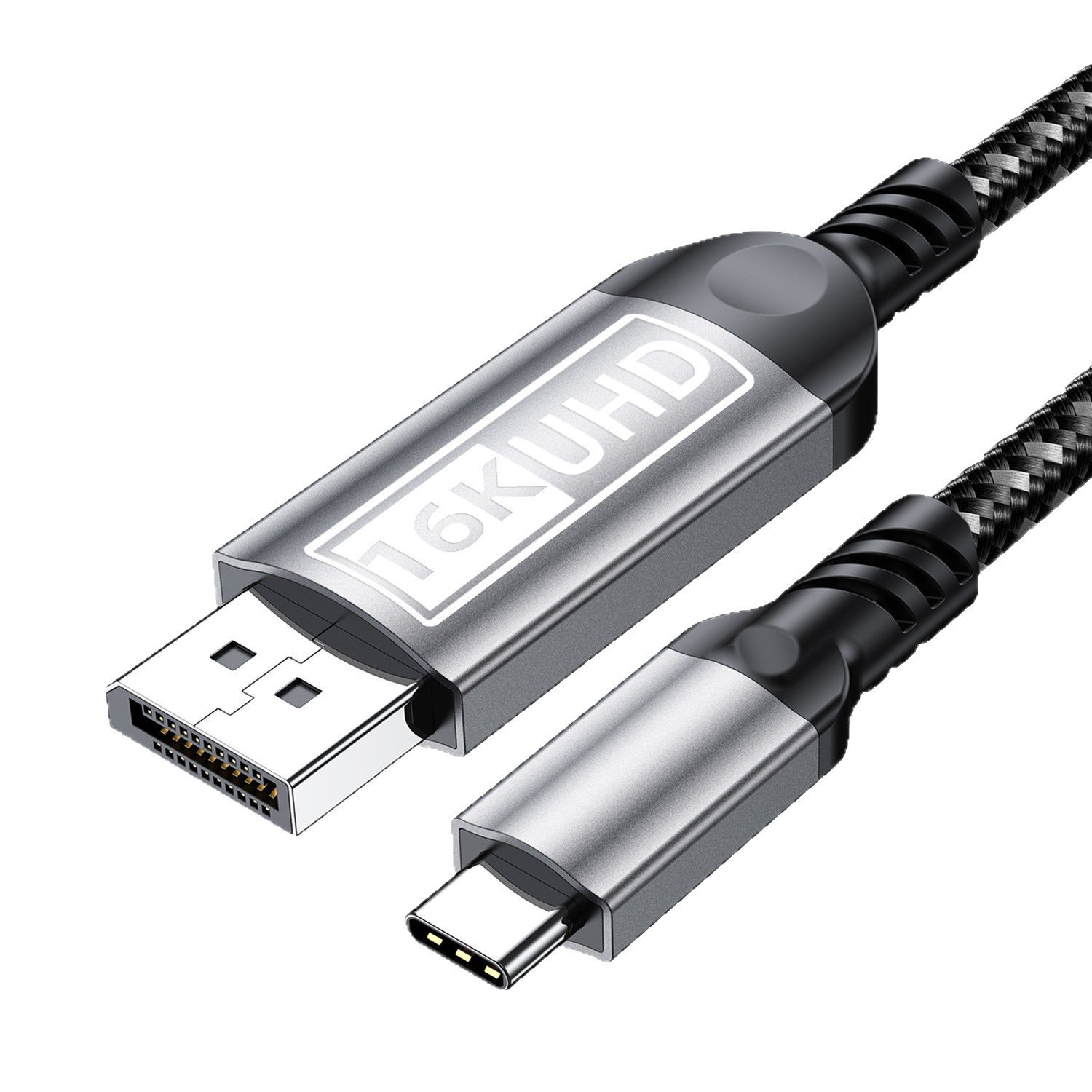
Choose a cable format for a direct, directional USB-C-source to DisplayPort-display path. Confirm the host output capability, display mode, cable length, latch preference, audio, and any HDR or color requirements. Qualification should cover the intended source and monitor pair.

A short adapter lets you service the DisplayPort cable separately. Specify the host, display, and downstream cable, then define the required mode and hot-plug behavior. Mechanical design should limit leverage on the USB-C port and leave space for nearby connectors.

Use this adapter only when the destination equipment accepts Mini DisplayPort. Mini DisplayPort shares a connector shape with some Thunderbolt generations, so verify the actual target interface. Provide the source and destination models, mode, and cable arrangement.
Verify USB-C Video Output
Check the host manual for the required video mode. USB-C describes the connector, not a guarantee of display output. Record the exact port when a device has several USB-C receptacles because their capabilities can differ.


Define Destination and Conversion Type
HDMI, DisplayPort, and digital DVI destinations may use different conversion paths from VGA, which is analog. State the exact display input and direction. Do not treat a mechanical gender adapter as evidence that digital-to-analog or reverse conversion will work.
Specify the Complete Display Mode
Resolution and refresh rate must be paired, then supplemented with color, HDR, audio, and display-count requirements. Validate that mode across the source, adapter controller, total cable path, and display. A single maximum-resolution phrase is not an adequate acceptance criterion.


Choose Adapter or Cable Construction
A dongle keeps the display cable removable; an integrated cable removes one connection. Compare service replacement, total length, connector weight, bend space, and strain relief. Define the label direction so users connect the USB-C source and display end correctly.
Approve a Compatibility Matrix
Test representative hosts, operating systems, displays, and required modes. Include audio, hot plug, sleep and wake, and power-delivery behavior only where the product supports them. Freeze the controller, firmware, cable, and housing with the approved sample.

Check the device specifications or manufacturer documentation for the exact port. A USB-C connector alone doesn’t guarantee video capability, and different ports on one device can serve different functions.
The live row repeats the VGA title, while the media filename and visual inspection show a DVI connector. The source label remains in the audit trail, and the customer-facing card should be corrected to match the product image.
An adapter uses a separate downstream display cable and is easier to replace on its own. An integrated cable removes one connection and fixes the total link. Compare service, length, and port strain.
VGA itself is an analog video interface and does not carry a digital audio stream. If sound is required, specify a separate output or another destination interface.
No. Some Thunderbolt generations used the Mini DisplayPort connector shape, but the connector appearance does not establish the interface. Verify the target device specification.
A device can implement different capabilities on separate ports. Identify the approved port in the instructions and qualifications rather than assuming every receptacle supports the same video mode.
No general guarantee should be made. The host, controller, cable, and display must all support the requested resolution, refresh rate, and other features. Approve the required combinations.
Yes, when an adapter uses a detachable cable. Its length and capability are part of the signal path, so record the test cable or approved range with the compatibility result.
Mark the USB-C source end and display end on the drawing and, where needed, on the cable or packaging. Use source-to-display wording rather than two connector names joined without direction.
Only if the exact design includes verified power pass-through. State the power requirement separately, and test the video and charging together. Do not infer this function from a simple video adapter.
How to Specify a USB-C Video Adapter
USB-C video projects often start with a familiar connector but an incomplete description of capabilities. Verify the host port, video mode, conversion direction, and destination interface before selecting the physical product.
Confirm the Host Port
Record the host model, operating system, and exact USB-C port. Check the manual for video-output support. If a laptop has several USB-C ports, identify which one is used. A charging-only or data-only USB-C port cannot be made into a video output by changing the cable.
Identify the Display Input
State HDMI, DisplayPort, Mini DisplayPort, DVI, or VGA and provide the display model. Mini DisplayPort can share a connector shape with older Thunderbolt products, while DVI includes several variants. Use the actual interface specification rather than the connector appearance.
Write the Direction
These products are intended for a USB-C video source and the named display destination. Do not assume the same assembly works in reverse. Put source and destination wording on the drawing, cable label, and package where misuse is possible.
Define the Operating Mode
Pair resolution with refresh rate and add color depth, HDR, chroma, content protection, audio, and display count when required. The source graphics, port, controller, cable, and display all limit the available mode. Define several required combinations in a compatibility matrix.
Handle Analog VGA Separately
A USB-C to VGA product must convert a digital video stream to analog output. Specify the expected display mode and image acceptance. VGA does not carry the digital audio stream, so provide a separate audio requirement if the application needs sound. Evaluate long analog runs and display quality in the actual installation.
Clarify DVI Requirements
State the DVI connector and whether the destination expects digital input. Do not infer analog or dual-link behavior from the general word DVI. Treat audio support as a separate, verified requirement. The live row mislabeled as a second VGA cable has been visually confirmed as a USB-C to DVI cable and should be corrected in WordPress.
Choose Adapter or Cable Form
A short adapter supports a replaceable downstream cable and flexible deployment. An integrated cable controls more of the link and removes one connection. Compare serviceability, total length, port leverage, enclosure clearance, bend radius, and packaging. Specify connector orientation when nearby ports are crowded.
Define Power and Multi-Function Behavior
If the product includes auxiliary power, USB data ports, or power pass-through, list each function and the intended host behavior. Do not extend a capability from one multi-port product to every simple video adapter. Power negotiation and video operation should be tested together when both are required.
Approve with Real Equipment
Test the host, adapter, downstream cable, and display as one path. Check every required display mode, image stability, audio, hot plug, sleep, and wake. Record controller, firmware, and cable revision. A monitor working at one default mode does not prove every advertised combination.
USB-C Video RFQ Checklist
| Area | Information |
|---|---|
| Host | Model, OS, port and video capability |
| Display | Model and input interface |
| Mode | Resolution, refresh, color, HDR and audio |
| Form | Adapter or cable, length and orientation |
| Power | Auxiliary input or pass-through if required |
| Mechanics | Housing, strain relief, finish, and labels |
| Approval | Compatibility matrix and acceptance result |

